
Filling out tedious forms, QA testing web pages, or re-entering repetitive data across modern web applications can quickly become a bottleneck.
We’re excited to launch Aeiro Autofill (v2.1)—a lightweight, privacy-focused extension designed to make form population effortless across web pages, React forms, and complex web applications.
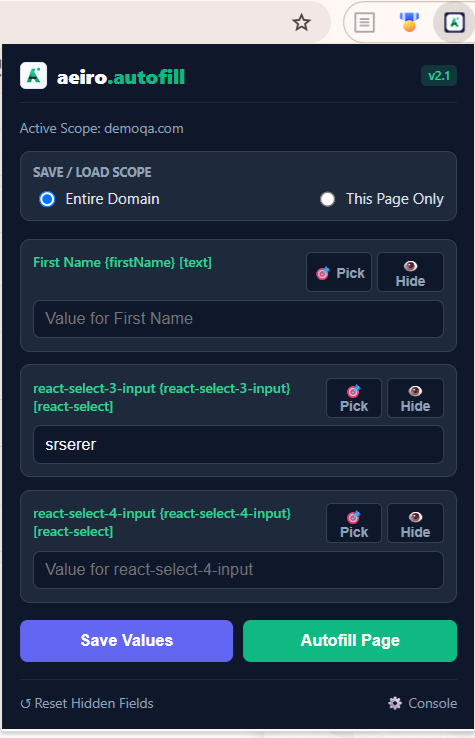
Key Features
-
Smart Field Scanner: Automatically detects standard inputs, textareas, checkboxes, radio groups, and native
<select>dropdowns. -
Modern Framework Support: Built-in detection for custom JavaScript components like React-Select, automatically handling typing and keyboard submission.
-
Domain vs. Page-Level Scopes: Choose whether to save and fill data across an Entire Domain (e.g.,
github.com) or This Page Only (e.g.,[github.com/settings/profile](https://github.com/settings/profile)). -
Visual Field Picker (? Pick): Instantly scroll to and visually highlight any input field on the live webpage.
-
Hide & Ignore List (?? Hide): Clean up your extension popup by hiding unnecessary hidden inputs or recaptchas.
-
Central Admin Console: View, search, edit, or purge saved domain data from a single dedicated dashboard.
-
Local & Secure: All data is stored locally in your browser storage. Nothing is sent to external servers.
Common Use Cases
-
QA Testing & Web Development: Rapidly populate complex registration forms with test data across staging and production environments.
-
Repetitive Workflows: Save standard entries, remarks, or profile fields for internal web applications you use daily.
-
Cross-Environment Form Filling: Easily switch between site-wide templates and page-specific inputs with a single toggle.
Installation Instructions
Aeiro Autofill (v2.1) works across all major Chromium-based browsers (Google Chrome, Microsoft Edge, Brave, Opera, Vivaldi) and Mozilla Firefox.
1. Google Chrome, Brave, Opera & Vivaldi
-
Download and extract the
aeiro-autofill.ziparchive. -
Open your browser and navigate to the extension manager:
-
Chrome / Brave:
chrome://extensions/ -
Opera:
opera://extensions/ -
Vivaldi:
vivaldi://extensions/
-
-
Enable Developer mode (toggle in the top-right corner).
-
Click Load unpacked and select the extracted extension folder.
-
(Optional for local testing) Click Details on the extension card and toggle ON “Allow access to file URLs”.
2. Microsoft Edge
-
Open Edge and go to
edge://extensions/. -
Turn on Developer mode in the left sidebar.
-
Click Load unpacked and select your extension folder.
3. Mozilla Firefox
-
Open Firefox and go to
about:debugging#/runtime/this-firefox. -
Click Load Temporary Add-on…
-
Select the
manifest.jsonfile inside your extension folder.
The extension is Free to Use. You can give us a shoutout on Social Media.